Teletutors User Guide
Teletutors is a desktop app for managing contacts, optimized for use via a Command Line Interface (CLI) while still having the benefits of a Graphical User Interface (GUI). If you can type fast, Teletutors can get your contact management tasks done faster than traditional GUI apps.
Quick start
Ensure you have Java
17or above installed in your Computer.Download the latest
.jarfile from here.Copy the file to the folder you want to use as the home folder for your Teletutors.
Open a command terminal,
cdinto the folder you put the jar file in, and use thejava -jar teletutor.jarcommand to run the application.
A GUI similar to the one below should appear in a few seconds.
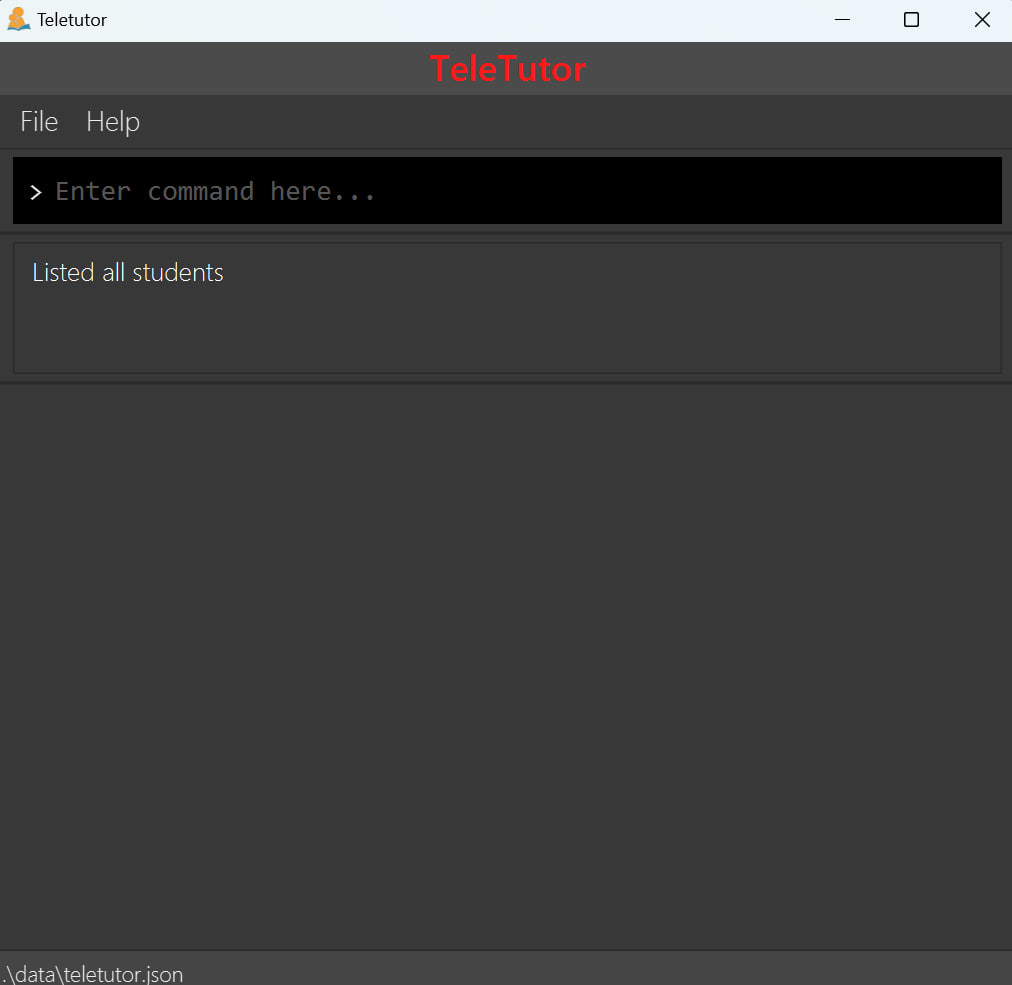
Pressing the up arrow key (↑) will recall the last valid command entered, allowing for modification of previous commands, similar to a command terminal
Pressing the down arrow key (↓) will recall the next valid command entered, allowing for retrieval of succeeding commands, similar to a command terminal
Type the command in the command box and press Enter to execute it. e.g. typing
helpand pressing Enter will open the help window.Some example commands you can try:
list: Lists all contacts.adds n/John Doe p/98765432 tg/G17 sn/A1234567Z: Adds a student namedJohn Doeto the Teletutor contact list.deletes n/John Doe: Deletes the contact with the name John Doe.exit: Exits the app.
Refer to the Features below for details of each command.
Features
Notes about the command format:
Words in
UPPER_CASEare the parameters to be supplied by the user.
e.g. inadds n/NAME,NAMEis a parameter which can be used asadds n/John Doe.Items in square brackets are optional.
e.g.n/NAME [sn/STUDENT_NUMBER]can be used asn/John Doe sn/A1234567Zor asn/John Doe.Parameters can be in any order.
e.g. if the command specifiesn/NAME p/PHONE_NUMBER,p/PHONE_NUMBER n/NAMEis also acceptable.Extraneous parameters for commands that do not take in parameters (such as
help,list,exit,deleteall,undo) will be ignored.
e.g. if the command specifieshelp 123, it will be interpreted ashelp.Extraneous parameters for commands that do take in parameters (such as
adds,deletes) will result in undefined behaviour.If you are using a PDF version of this document, be careful when copying and pasting commands that span multiple lines as space characters surrounding line-breaks may be omitted when copied over to the application.
Name arguments with extra whitespaces between words will be reduced to a single whitespace. e.g.
n/John Doewill be treated asn/John Doe.Tutorial group and student number arguments are not case-sensitive.
- Tutorial Groups must be in the format of a letter followed by two numbers i.e
G17,Z19,T15, etc.
- Tutorial Groups must be in the format of a letter followed by two numbers i.e
Viewing help : help
Shows a message explaning how to access the help page.

Format: help
Exiting the program : exit
Exits the program.
Format: exit
Undoing the previous command : undo
Undoes the previous command.
The help and closeat commands are currently not undoable (planned for future versions).
Format: undo
Student Commands
Student prefixes
| Prefix | Constraints | Example |
|---|---|---|
n/ | Names should only contain alphanumeric characters and spaces, and it should not be blank. Additionally, name fields do not allow special characters like "/". Names that include "D/O" or "S/O" should be replaced by "DO" and "SO" respectively | valid: n/John Doeinvalid: n/, n/Thiru S/o Damith |
p/ | Phone numbers should only contain numbers, and it should be at least 3 digits long | valid: p/98765432invalid: p/1234 5678 |
tg/ | Tutorial group should only be in the format of a letter followed by two numbers. | valid: tg/G01invalid: tg/G1 |
sn/ | Student number should be in the format of a letter followed by 7 numbers and a letter. | valid: sn/A1234567Zinvalid: sn/1234567z |
Adding a student: adds
Adds a student to the contact list.
Format: adds n/NAME p/PHONE_NUMBER tg/TUTORIAL_GROUP sn/STUDENT_NUMBER
Tip: A student must have a unique student number, so if the same student number is used for a new student, the user will be informed that the student already exists in the list.
Examples:
adds n/John Doe p/98765432 tg/G69 sn/E1234567Iadds n/Betsy Crowe tg/G16 p/23456789 sn/a1234567z
Listing all students : list
Shows a list of all students in the contact list.
Format: list
Editing a student : edits
Edits an existing student in the contact list.
Format: edits INDEX [n/NAME] [p/PHONE] [tg/TUTORIAL_GROUP] [sn/STUDENT_NUMBER]
- Edits the student at the specified
INDEX. The index refers to the index number shown in the displayed contact list. The index must be a positive integer 1, 2, 3, … - At least one of the optional fields must be provided.
- Existing values will be updated to the input values.
Examples:
edits 1 p/91234567 tg/Z19Edits the phone number and tutorial group of the 1st person in the displayed list to be91234567andZ19respectively.edits 2 n/Betsy CrowerEdits the name of the 2nd person in the displayed list to beBetsy Crower.
Locating student by name: view
View student(s) whose name matches the specified name exactly.
Format: view NAME
- The given name must match the student's name exactly. e.g
view Johnwill not returnJohn Doe's details. - Name is case-sensitive. e.g.
view marywill not returnMary's details. - Name is space-sensitive. e.g.
view John Doewill not returnJohnDoe's details, andview JohnNgwill not returnJohn Ng's details. - If more than one student share the exact same name, all the students with that name will be displayed.
Examples:
view Alex YeohDisplays the details of all students with the exact nameAlex Yeoh.view LynetteDisplays the details of all students with the exact nameLynette.
Deleting a specific student : deletes
Deletes the specified student from the contact list.
Format: deletes n/NAME [sn/STUDENT_NUMBER]
- Deletes the student with the specified details.
- The student name refers to the student name shown in the displayed list of students.
- The student number refers to the student number shown in the displayed list of students.
- If a student number is provided, it must be in the following format A1234567B, a1234567B, A1234567b, a1234567b, ...
- If there is more than one student with the exact same name, the student number must be provided to differentiate between them when deleting.
Examples:
deletes n/John Tandeletes the student with the exact nameJohn Tanfrom the contact list.deletes n/Betsy sn/A0123456Xdeletes the student with the exact nameBetsyand student numberA0123456Xfrom the contact list.
Clearing all data and deleting all students : deleteall
Deletes all students from the contact list.
Format: deleteall
Attendance Commands
Attendance prefixes
| Prefix | Constraints | Example |
|---|---|---|
n/ | Names should only contain alphanumeric characters and spaces, and it should not be blank. Additionally, name fields do not allow special characters like "/". Names that include "D/O" or "S/O" should be replaced by "DO" and "SO" respectively | valid: n/John Doeinvalid: n/, n/Thiru S/o Damith |
dt/ | Dates should be in the format "YYYY-MM-DD" | valid: dt/2019-01-01invalid: dt/, dt/1 Jan 2019 |
pr/ | Attendance should either be "p" or "a". | valid: pr/p, pr/a invalid: pr/P, pr/A, pr/present, pr/absent |
tg/ | Tutorial group should only be in the format of a letter followed by two numbers. | valid: tg/G01invalid: tg/G1 |
sn/ | Student number should be in the format of a letter followed by 7 numbers and a letter. | valid: sn/A1234567Zinvalid: sn/1234567z |
IMPORTANT: Any command that has the optional field sn/STUDENT_NUMBER can be used without the student number if the student number is not known. However, if there are multiple students with the same name, the student number is required to differentiate between them.
Marking Attendance : markat
Marks attendance of student for a particular date with the specified details.
Format: markat n/NAME dt/DATE pr/ATTENDANCE [sn/STUDENT_NUMBER]
Examples:
- If
Adam Leeis a unique name,markat n/Adam Lee dt/2024-12-12 pr/pmarks the student with the nameAdam Leepresent on2024-12-12. - If
Mary Tanis a unique name,markat n/Mary Tan dt/2024-09-11 pr/amarks the student with the nameMary Tanabsent on2024-09-11. - If there are multiple students with the name
Adam Lee,markat n/Adam Lee dt/2024-12-12 pr/p sn/A1234567Zmarks the student with the nameAdam Leeand student numberA1234567Zpresent on2024-12-12. - If there are multiple students with the name
Mary Tan,markat n/Mary Tan dt/2024-09-11 pr/a sn/A0123456Xmarks the student with the nameMary Tanand student numberA0123456Xabsent on2024-09-11.
Marking Tutorial Group Attendance to Present : markpresentall
Marks all students in a tutorial group as present for a particular date
Format: markpresentall tg/TUTORIAL_GROUP dt/DATE
Marking Tutorial Group Attendance to Absent: markabsentall
Marks all students in a tutorial group as absent for a particular date
Format: markabsentall tg/TUTORIAL_GROUP dt/DATE
Deleting Attendance : deleteat
Deletes attendance of student for a particular date with the specified details.
Format : deleteat n/NAME dt/DATE [sn/STUDENT_NUMBER]
Deleting Tutorial Group Attendance : deleteatall
Deletes attendance of all students in a tutorial group for a particular date
Format : deleteatall tg/TUTORIAL_GROUP dt/DATE
Getting Attendance : getat
Gets attendance of student for a particular date
- If
Adam Leeis a unique name,getat n/Adam Lee dt/2024-12-12gets the student with the nameAdam Lee's attendance on2024-12-12. - If
Mary Tanis a unique name,getat n/Mary Tan dt/2024-09-11gets the student with the nameMary Tan's attendance on2024-09-11. - If there are multiple students with the name
Adam Lee,getat n/Adam Lee dt/2024-12-12 sn/A1234567Zgets the student with the nameAdam Leeand student numberA1234567Z's attendance on2024-12-12. - If there are multiple students with the name
Mary Tan,getat n/Mary Tan dt/2024-09-11 sn/A0123456Xgets the student with the nameMary Tanand student numberA0123456X's attendance on2024-09-11.
Format: getat n/NAME dt/DATE [sn/STUDENT_NUMBER]
Getting Tutorial Group Attendance : getattg
Opens an attendance window for all students in a tutorial group for all dates that are currently known.
- Executing
undowill close the last window opened by this command
Format: getattg tg/TUTORIAL_GROUP
Closing Attendance Window : closeat
Closes all attendance windows if any are currently open.
Assignment Commands
Assignments are displayed with different colors based on the following criteria:
- Green: Submitted and graded
- Yellow: Submitted but not graded
- Red: Not submitted but before deadline
- Black: Not submitted but after deadline
Assignment Prefixes
| Prefix | Constraints | Example |
|---|---|---|
n/ | Names should only contain alphanumeric characters and spaces, and it should not be blank. Additionally, name fields do not allow special characters like "/". Names that include "D/O" or "S/O" should be replaced by "DO" and "SO" respectively | valid: n/John Doeinvalid: n/, n/Thiru S/o Damith |
a/ | Assignment names should only contain alphanumeric characters and spaces, and it should not be blank. Additionally, assignment names should be unique. | valid: a/Assignment 5 invalid: a/ Assignmment@2 |
tg/ | Tutorial group should only be in the format of a letter followed by two numbers. | valid: tg/G01invalid: tg/G1 |
sn/ | Student number should be in the format of a letter followed by 7 numbers and a letter. | valid: A1234567N invalid: B1234567C, A123B |
d/ | Dates should be in the format YYYY-MM-DD | valid: 2024-12-01 invalid: 2023-5-1, 5-1-2024 |
g/ | Grade is an decimal number between 0 and 100 inclusive or NULL (Case Sensitive). | valid: NULL, 5, 98 invalid: 101, null |
Adding Assignments : adda
Adds an assignment to the specified student
Format: adda n/NAME a/ASSIGNMENT_NAME d/DEADLINE [s/SUBMISSION_STATUS] [g/GRADE] [sn/STUDENT_NUMBER]
- Adds an assignment to the student with
NAME. If student number is provided, this adds an assignment to the student withSTUDENT_NUMBERandNAME. - If there is more than one student with
NAME, a student number must be provided. - Assignment names must be unique.
- If not specified,
SUBMISSION_STATUSdefaults toN(i.e. not submitted). - If not specified,
GRADEdefaults toNULL(i.e. not graded).
Deleting Assignments : deletea
Deletes an assignment for the specified student
Format: deletea n/NAME a/ASSIGNMENT_NAME [sn/STUDENT_NUMBER]
- Deletes an assignment matching
ASSIGNMENT_NAMEto the student withNAME. If student number is provided, this deletes the assignment for the student withSTUDENT_NUMBERandNAME. - If there is more than one student with
NAME, a student number must be provided.
Editing Assignments : edita
Edits an assignment for the specified student
Format: edita n/NAME a/ASSIGNMENT_NAME [d/DEADLINE] [s/SUBMISSION_STATUS] [g/GRADE] [sn/STUDENT_NUMBER]
- Edits an assignment matching
ASSIGNMENT_NAMEto the student withNAME. If student number is provided, this edits the assignment for the student withSTUDENT_NUMBERandNAME. - If there is more than one student with
NAME, a student number must be provided. - Fields which are not specified will remain unchanged after the operation.
Adding Assignments by Tutorial Group : addatg
Adds an assignment to all students from the specified tutorial group
Format: addatg tg/TUTORIAL_GROUP a/ASSIGNMENT_NAME d/DEADLINE
- Adds an assignment to the students with
TUTORIAL_GROUP. - Assignments default to not submitted and ungraded.
Saving the data
Teletutors data are saved in the hard disk automatically after any command that changes the data. There is no need to save manually.
Editing the data file
Teletutors data are saved automatically as a JSON file [JAR file location]/data/teletutor.json. Advanced users are welcome to update data directly by editing that data file.
Caution:
If your changes to the data file makes its format invalid, Teletutors will discard all data and start with an empty data file at the next run. Hence, it is recommended to take a backup of the file before editing it.
Furthermore, certain edits can cause the Teletutors to behave in unexpected ways (e.g., if a value entered is outside the acceptable range). Therefore, edit the data file only if you are confident that you can update it correctly.
Future Implementations [coming in v2.0]
Assignment
- View full details i.e (Name, Submission Status, Grade and Deadline) of an assignment
- Currently only Name, Submission Status and Grade are shown
- Ability to view all assignments for a Tutorial Group
- Feedback on Assignments
Attendance
- Export all attendance records to Comma Separated Values (CSV) format
- Allows for easy exporting to other applications like Microsoft Excel
FAQ
Q: How do I transfer my data to another Computer?
A: Install the app in the other computer and overwrite the empty data file it creates with the file that contains the data of your previous Teletutors home folder.
Known issues
- When using multiple screens, if you move the application to a secondary screen, and later switch to using only the primary screen, the GUI will open off-screen. The remedy is to delete the
preferences.jsonfile created by the application before running the application again. - If you minimize the Help Window and then run the
helpcommand (or use theHelpmenu, or the keyboard shortcutF1) again, the original Help Window will remain minimized, and no new Help Window will appear. The remedy is to manually restore the minimized Help Window. - For students with exceptionally long names, the window might not be long enough to accomodate the full name.
- There is currently no way for users to view
Assignment's Dates. Will be implemented in future versions. - Input field for assignment grade is case-sensitive.
- Students with the same phone number can be added to the list.
- The
closeatcommand will not account for windows that are manually closed using theXbutton.
Command summary
| Action | Format, Examples |
|---|---|
| Add Student | adds n/NAME p/PHONE_NUMBER tg/TUTORIAL_GROUP sn/A1234567J e.g., adds n/P Diddy p/22224444 tg/G17 sn/A1234567J |
| Clear Contact List | deleteall |
| Delete Student | deletes n/NAME [sn/STUDENT_NUMBER]e.g., deletes n/John Doe sn/A1234567Z |
| Edit Student | edits INDEX [n/NAME] [p/PHONE_NUMBER] [tg/TUTORIAL_GROUP] [sn/STUDENT_NUMBER]e.g., edits 2 n/James Lee p/12345678 |
| View Student(s) | view NAMEe.g., view James Jake |
| List | list |
| Help | help |
| Undo | undo |
| Mark Attendance | markat n/NAME dt/DATE pr/ATTENDANCE [sn/STUDENT_NUMBER]e.g., markat n/John Doe dt/2021-10-10 pr/p sn/A1234567Z |
| Mark Present for Tutorial Group | markpresentall tg/TUTORIAL_GROUP dt/DATEe.g., markpresentall tg/G17 dt/2021-10-10 |
| Mark Absent for Tutorial Group | markabsentall tg/TUTORIAL_GROUP dt/DATEe.g., markabsentall tg/G17 dt/2021-10-10 |
| Delete Student's Attendance | deleteat n/NAME dt/DATE [sn/STUDENT_NUMBER]e.g., deleteat n/John Doe dt/2021-10-10 sn/A1234567Z |
| Delete Tutorial Group Attendance | deleteatall tg/TUTORIAL_GROUP dt/DATEe.g., deleteatall tg/G17 dt/2021-10-10 |
| Get Attendance | getat n/NAME dt/DATE [sn/STUDENT_NUMBER]e.g., getat n/John Doe dt/2021-10-10 sn/A1234567Z |
| Get Tutorial Group Attendance | getattg tg/TUTORIAL_GROUPe.g., getattg tg/G17 |
| Close All Tutorial Group Attendance Windows | closeat |
| Add Assignment | adda n/NAME a/ASSIGNMENT_NAME d/DEADLINE [s/SUBMISSION_STATUS] [g/GRADE] [sn/STUDENT_NUMBER]e.g., adda n/John Doe a/Assignment 1 d/2021-10-10 s/N g/100 sn/A1234567Z |
| Delete Assignment | deletea n/NAME a/ASSIGNMENT_NAME [sn/STUDENT_NUMBER]e.g., deletea n/John Doe a/Assignment 1 sn/A1234567Z |
| Edit Assignment | edita n/NAME a/ASSIGNMENT_NAME [d/DEADLINE] [s/SUBMISSION_STATUS] [g/GRADE]e.g., edita n/John Doe a/Assignment 1 d/2021-10-10 s/Y g/90 |
| Add Assignment to Tutorial Group | addatg tg/TUTORIAL_GROUP a/ASSIGNMENT_NAME d/DEADLINE e.g., addatg tg/T15 a/Assignment 1 d/2021-10-10 |